What you need first
This guide assumes:
- Windows 10 or 11, 64-bit. (Nimbus runs natively; no compatibility layer.)
- Marvel Rivals installed via Steam, fully patched. The Epic install path also works — auto-detect handles both.
- An active Nimbus license (lifetime, sub, or the 1-hour trial — all routes work the same way). Buy at /buy if you don't have one yet.
- A signed-in account at getnimbus.net.
You do not need:
- To disable your antivirus permanently.
- To run as admin (the loader requests elevation only when it needs to, and explains why).
- A second account for "safety" — that's a cheap-overlay habit. Use your real account; the design assumes it.
The 90-second path
This is the whole thing, end to end. If you miss the SmartScreen step, see our SmartScreen guide — it's the only step that ever surprises first-time users.
1. Download the loader (15 seconds)
Sign in at getnimbus.net/login. Land on /dashboard. The Download loader button is at the top of the dashboard.
Click it. Your browser saves NimbusLoader-latest.exe (about
6 MB) plus a matching .sig file.
Gotcha: if your browser warns about the EXE being "not commonly downloaded", that's the SmartScreen reputation system, not a problem with the file. Tell the browser to keep it. The SmartScreen guide has screenshots.
2. Save it somewhere you control (5 seconds)
Move NimbusLoader-latest.exe to a folder you'll remember —
C:\Nimbus\ is what we recommend. Don't leave it in
Downloads — the loader auto-updates by overwriting itself,
which gets messy if you have eight copies in Downloads.
3. Run it. SmartScreen → Run anyway (15 seconds)
Double-click NimbusLoader-latest.exe. On a fresh install, you'll
see Windows SmartScreen pop the "Windows protected your PC"
dialog.
- Click More info (top-left of the dialog).
- Click Run anyway.
The loader splash appears. SmartScreen won't ask again for this exact build.
4. Sign in (10 seconds)
The sign-in dialog opens automatically. Enter the email and password from your getnimbus.net account.
Two things you can tick before clicking Sign in:
- "Remember me on this device" — saves your email + password AES-encrypted with a machine-bound key. Future cold launches pre-fill the dialog. You still see the dialog every cold launch (founder policy — no auto-sign-in bypass, ever), but you click Sign in once instead of typing.
- "Stay signed in for this session" — keeps the session token live across loader restarts within the same login session. Off by default; some users prefer it on.
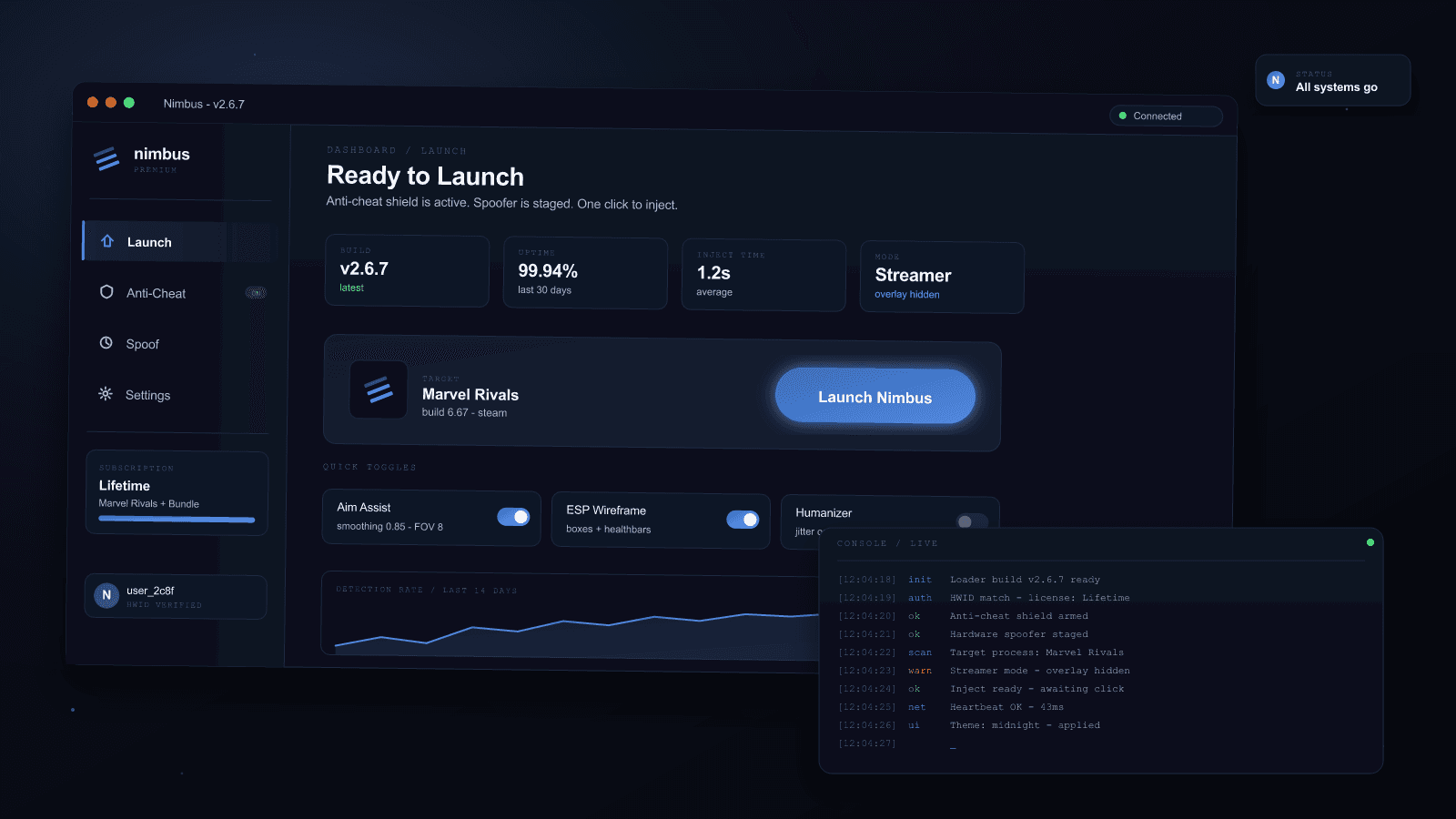
Click Sign in. The protected UI loads — that's the loader's main panel with Launch, Anti-Cheat, Spoof, and Settings tabs.
5. Click Launch (45 seconds)
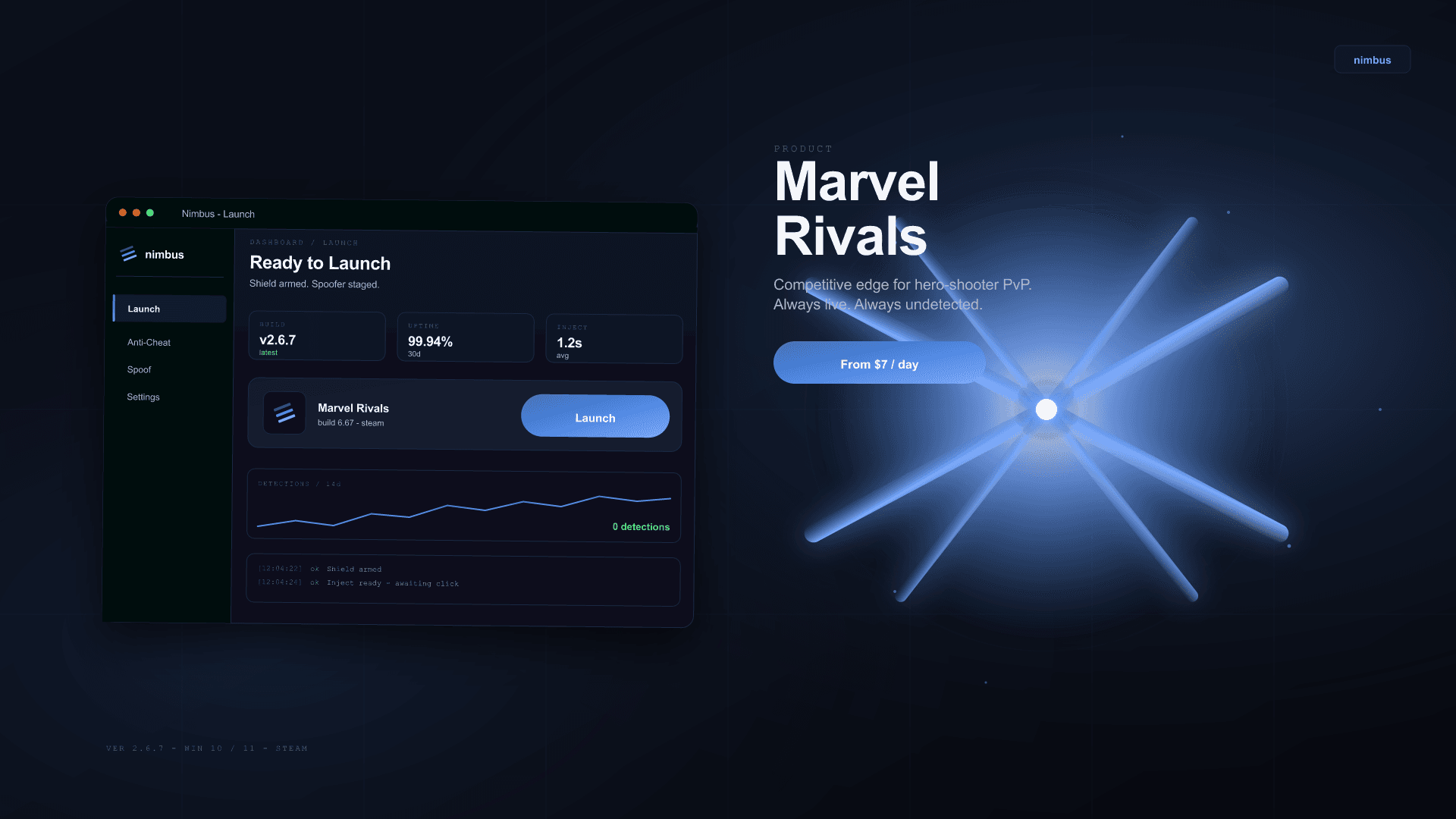
The Launch tab is open by default. Click the big Launch Marvel Rivals button.
What happens, in order:
- The loader auto-detects your Marvel Rivals install (Steam path probed first, Epic path second). Takes ~1 second.
- The anti-cheat preflight runs. This makes sure NEP isn't already loaded in a bad state from a previous crash. Takes ~2 seconds.
- The cleaner cascade runs — a deterministic set of cmd
operations that wipe NetEase / UniSDK / D3DSCache /
NgConsentManager / CrashDumps / UnrealEngine paths from
%LOCALAPPDATA%,%APPDATA%, and Steam's MarvelRivals\Log directory. Takes ~7 seconds, all silent (no flashing windows). - Steam launches Marvel Rivals through the Steam protocol
handler. Steam →
MarvelRivals_Launcher→Marvel.exe→Marvel-Win64-Shipping.exe. Takes ~30 seconds depending on your disk + Steam's mood. - Our payload mounts into the game via the
libogg_64.dllhijack vector at the right window in startup, well before EAC seals the module table.
Total: about 45 seconds on an SSD with a warm Steam.
6. Press the menu key (5 seconds)
Once the Marvel main menu (Choose Hero / Play) is on screen,
press Insert (default — rebind in the loader's Settings
tab if you want). The Nimbus menu opens — 14 tabs across the top:
Aim, ESP, Visuals, Heroes, Combos, Skin Swap, World, Misc,
Profiles, Themes, Keybinds, Settings, Diagnostics, and Debug.
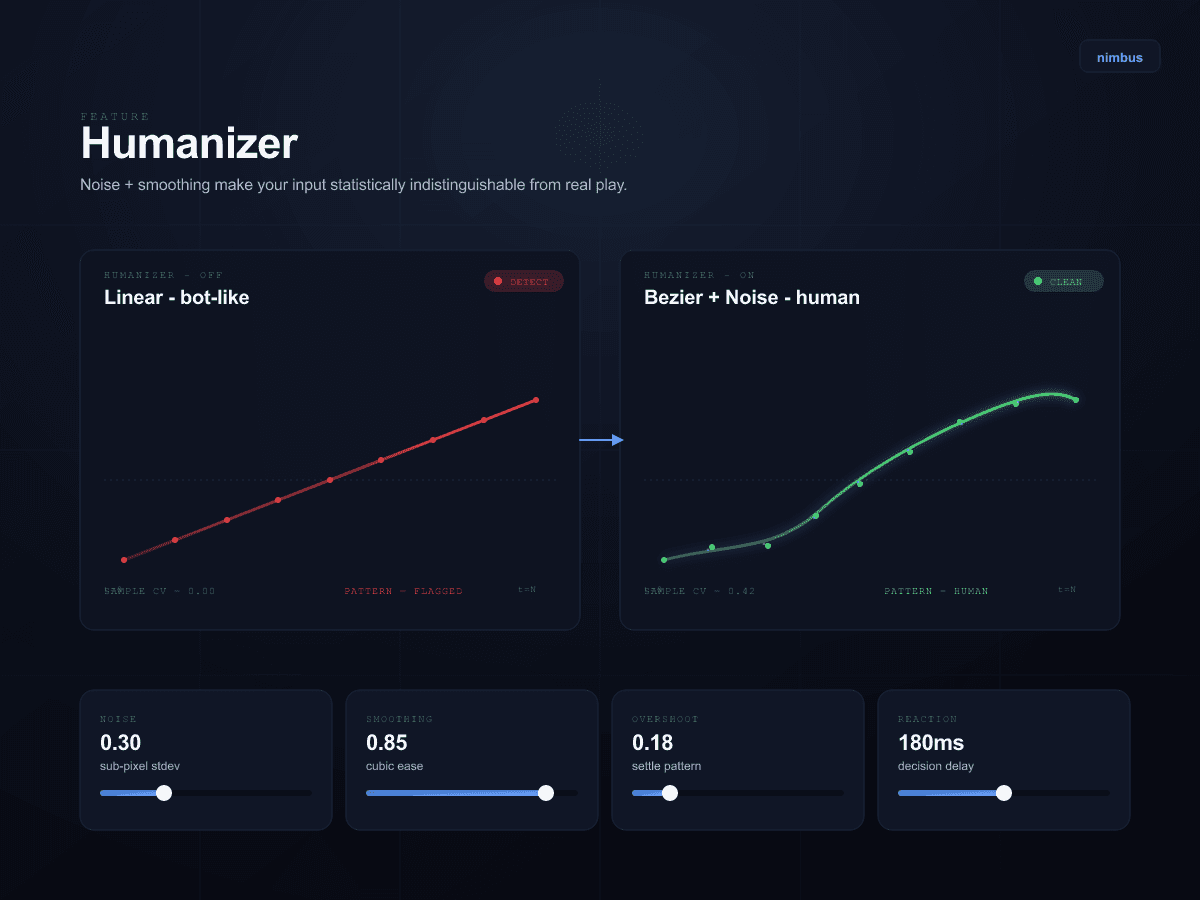
Pick Profiles → Apply: Plausible default. That sets every feature to its conservative starting point — modest FOV, information ESP only (no box ESP), humanizer on, silent aim off until you opt in.
You're playing.
What "Plausible default" actually does
Plausible default is our recommended starter profile. It's the profile our team plays on. Settings it enables:
- Aim: smoothing at 0.35, FOV at 4°, humanizer on, silent aim off, target-prediction on for projectile heroes.
- ESP: nameplates on, cooldown bars on, ult charge on, health bars on, box ESP off, skeleton ESP off.
- Misc: auto-walk anti-AFK off, FOV changer off, spinbot off.
You can absolutely turn on more. We want you to play with the toggles. But plausible default is what minimizes the spectator-review and behavioral-detection surface. If you crank to max on day one, you're playing the cheap-overlay user pattern, and that pattern has a worse outcome than this one.
The reasoning lives in our EAC + safety post — read it once, decide which toggles you want on, and move on.
What the four loader tabs do
After sign-in, the loader has four tabs across the top:
- Launch — what you used above. Big button. Detect status of your Marvel install. Latest build version.
- Anti-Cheat — toggles for the cleaner cascade, NEP watcher, and EAC preflight. Defaults are on. You shouldn't need to touch this unless asked.
- Spoof — HWID-related tooling for advanced users (one-shot spoof + kernel spoof). Most customers never open this. If you need it, the docs explain when.
- Settings — auto-update on/off, log verbosity, language, crash-report opt-in. Defaults are sensible.
Common first-launch issues
If something doesn't go to plan:
- SmartScreen / antivirus blocked it. See the SmartScreen guide. Most common first issue. Two clicks to fix.
- Sign-in says "HWID mismatch". You're using a key that's bound to a different PC. See the HWID reset guide.
- Marvel launches but the menu doesn't appear. Make sure
you're on the default
Insertkey and that another overlay (Steam, Discord, GeForce Experience) isn't capturing your input first. Worst case, rebind in Settings. - "Marvel install not detected." Click the small detect again link, or paste your install path manually. Steam users almost never hit this. Epic users sometimes do if the install path is non-default.
If none of those match, ping us in Discord. Peak-hours first-response is under 30 minutes. Include a screenshot of the loader's bottom-status-bar — that line carries the version + last error and is usually enough for us to diagnose immediately.
After the first launch
Once you've launched successfully once, the loop is fast:
- Open the loader. Click Sign in (one click — credentials pre-filled).
- Click Launch. Wait ~45 seconds.
- Press Insert in the main menu. Adjust profile if needed.
- Play.
You'll get notified in the loader when a new build is available (auto-update, off by default — toggle on in Settings if you want it). New builds usually ship hours within a Marvel patch. See /changelog for what's in each ship.
Bottom line
Install → SmartScreen → Sign in → Launch → Insert. Five clicks, under 90 seconds in the steady state, ~2 minutes the first time because of SmartScreen.
If anything on that path surprises you, that's a documentation bug on our end — tell us in Discord and we'll fix the guide.
Sign up · Buy Nimbus · Discord · Help center